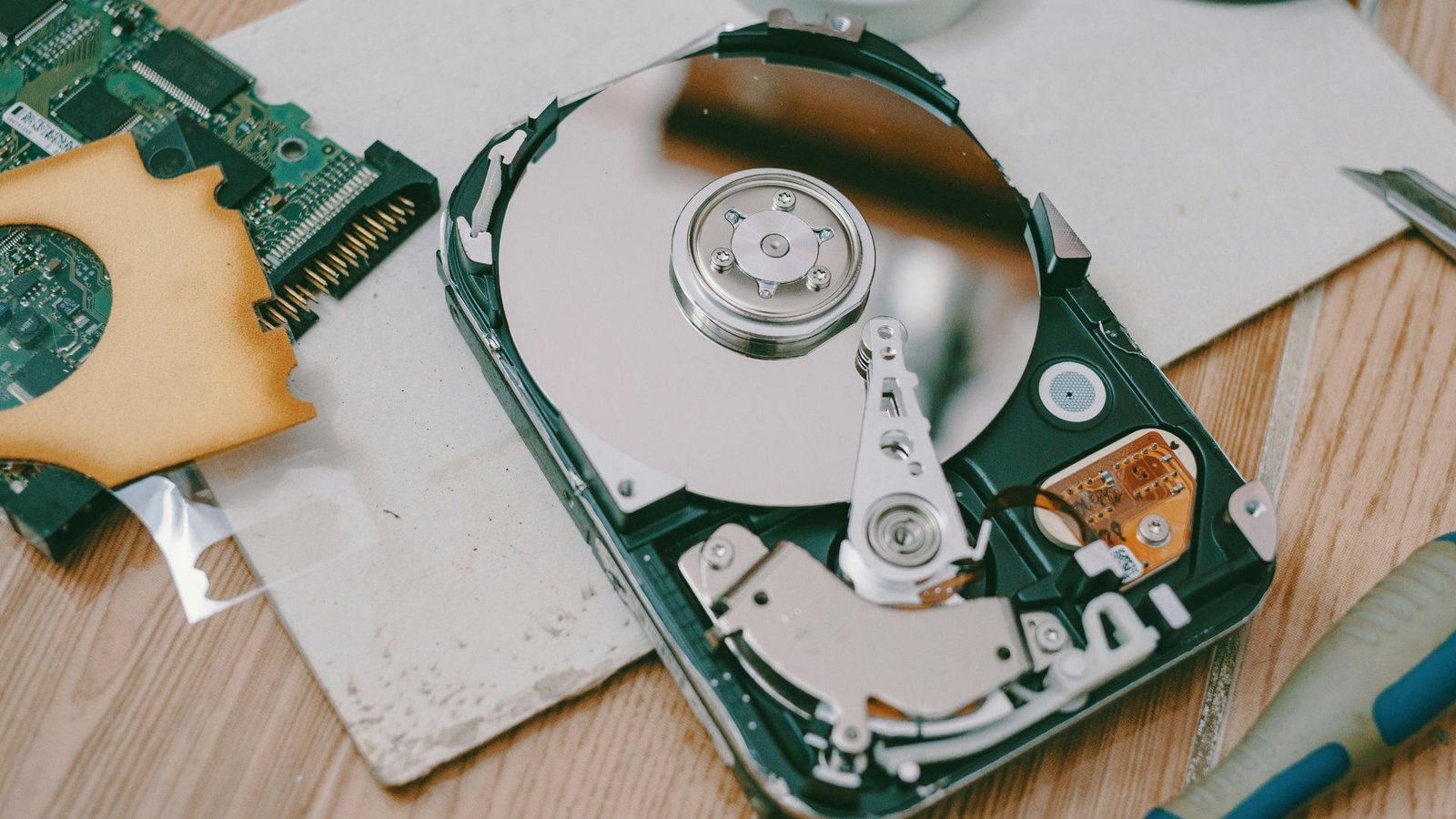
A sudden SSD failure is an expensive issue, mainly during this age of AI-focused price hikes. Longer file transfers and boot durations are expensive to fix since SSDs have become costlier than Gold by weight nowadays. However, most issues are often elsewhere, much like under the rug. It’s best for you to understand the underlying problems before adding a replacement to your cart.
Even if you buy a new SSD, the underlying problems can corrupt it again. A famous example of this is Samsung’s 970 EVO drive that suddenly dropped its read and write speeds by more than half. This caused major panic across forums like Sub Reddit/buildapc; many believed they experienced a total drive failure. But some SSDs were saved by running the diagnostic software and a firmware update. You could be facing something like this, rather than your expensive SSD being completely broken.
Always start with diagnosing your SSD’s metrics
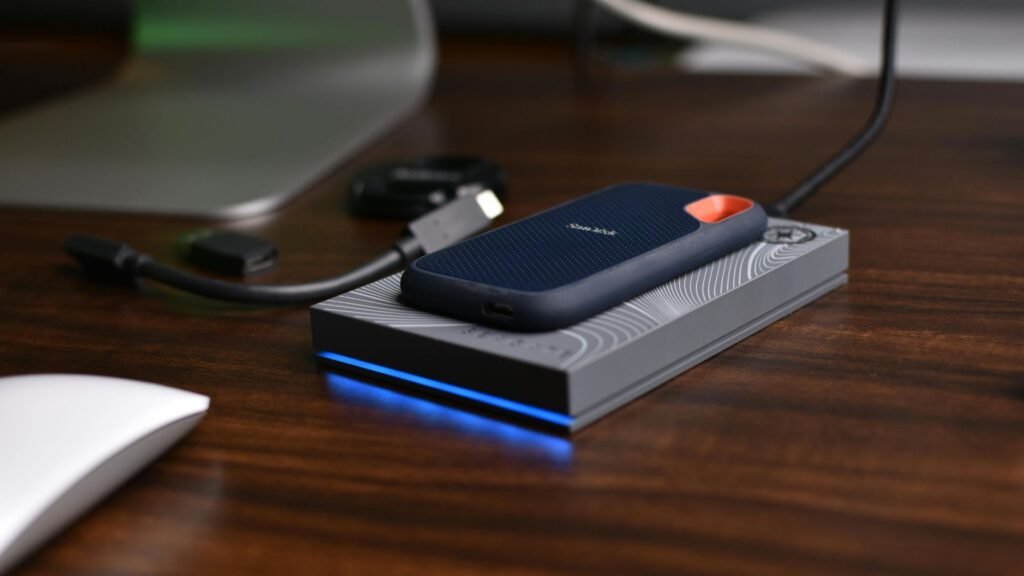
Since SSDs are solid drives and have no moving parts, they have a longer lifespan. If yours shows problems, start by checking your SSD’s health with the SMART diagnostics. SMART, or Self-Monitoring, Analysis, and Reporting Technology, tracks important metrics. This diagnostic helps monitor your SSD’s health and predict any potential issues.
You can use tools like CrystalDiskInfo or Intel SSD Toolbox to monitor these metrics, while Linux users can run smartctl-a /dev/nvme0n1 for a full log. If the values come out as normal, that means your drive is fine. While SMART is useful, it still has its limits; a drive can show “Good” even with minor errors or hidden issues. It is better to combine SMART checks with the manufacturer’s official data for a factual assessment.
Check all physical connections before assuming anything
Sometimes the issue is not the SSDs or other software, but your device’s cable and drive disconnections. Check if there are any loose SATA cables, partially seated M.2 drives, or insufficient power delivery to your device. The best solution is to test your SSD in another device or use a different port to clarify the problem. Many cases of drives appearing dead are resolved simply by reseating the hardware or replacing a faulty cable. If the problem is still not fixed, you can read below.
Check your SSD’s firmware and update if available
First and foremost, you must go through all connections of your device before assuming anything. While casual users often don’t check their SSD firmware, it is an important aspect to consider. A drive’s firmware is its operating system; it governs how the drive handles everything. Updating your SSD’s firmware might resolve any related issues and optimize it again. Make sure to back up your data from your PC or laptop before updating the drive; any interruptions or failures can corrupt it easily. A few SSDs sometimes allow firmware rollback if a new version introduces instability; you must check if this is available.
There might be underlying software and system issues
Not all SSD issues are hardware-related; yours might have outdated drivers or other software conflicts. If you’re running heavy background tasks like antivirus scans or virtual machines, it is obvious that your drive’s performance will slow down temporarily. Multitasking heats up your device; high temperatures can cause NVMe drives to throttle, cutting the old SSD’s speed significantly.
Keep in mind that diagnostic tools are not always fully compatible with every SSD or system. For example, some versions of Samsung Magician might not detect specific SSD models because of driver or chipset differences. You must use different tools and compare the results, or check the drive on another system for a more accurate result.
It is important to benchmark your SSD’s performance
If the problems are still evident, check the drive’s read and write speeds against the manufacturer’s specs. What to look for are the read and write tests, random I/O performance, and latency measurements. You can use tools like CrystalDiskMark, Disk Speed Test, and fio on Linux to track these metrics. Drives that perform within their rated speeds are usually healthy, even if occasional slowdowns happen.
Know when SSD replacement is truly necessary
If your SSD is still not running as intended with these checks, it’s best to assume the worst. Signs of a real failure include constant errors or physical damage. Do not panic if the error is sudden; while these hangs often look like permanent hardware death, the drive can usually be recovered, though often at the cost of your data. In some cases, you can still recover data depending on the type of failure and the tools you use. While these checks do not make you a tech geek, they will surely aid in making smart decisions. Instead of replacing your disc drive, if everything is okay, you might as well get gold for yourself.
The “Red Flag” Checklist: What Your Metrics Actually Mean
Before you conclude that your hardware is failing, compare your diagnostic results against these industry-standard thresholds. If your drive falls into the “Warning” category, prioritize a backup over a replacement.
| Metric | Healthy Threshold | Red Flag (Action Required) |
| Reallocated Sectors | 0 | Any value > 0 (Physical NAND damage) |
| Operating Temp | 30°C – 50°C | 70°C+ (Triggers thermal throttling) |
| Percentage Used | 0% – 80% | 90%+ (Near end of rated lifespan) |
| Available Spare | 100% | Under 10% (Drive is out of backup blocks) |
| Unsafe Shutdowns | Low Count | Rapidly Increasing (Likely a loose cable) |
Pro Tip: If your SSD shows a massive speed drop but the reallocated sectors count is still 0, your drive is likely healthy. In these cases, a firmware update is usually the magic fix that restores full Gen3/Gen4 speeds without costing you a dime.
Read my latest take on: How to Get Gimmighoul Coins in Pokemon GO