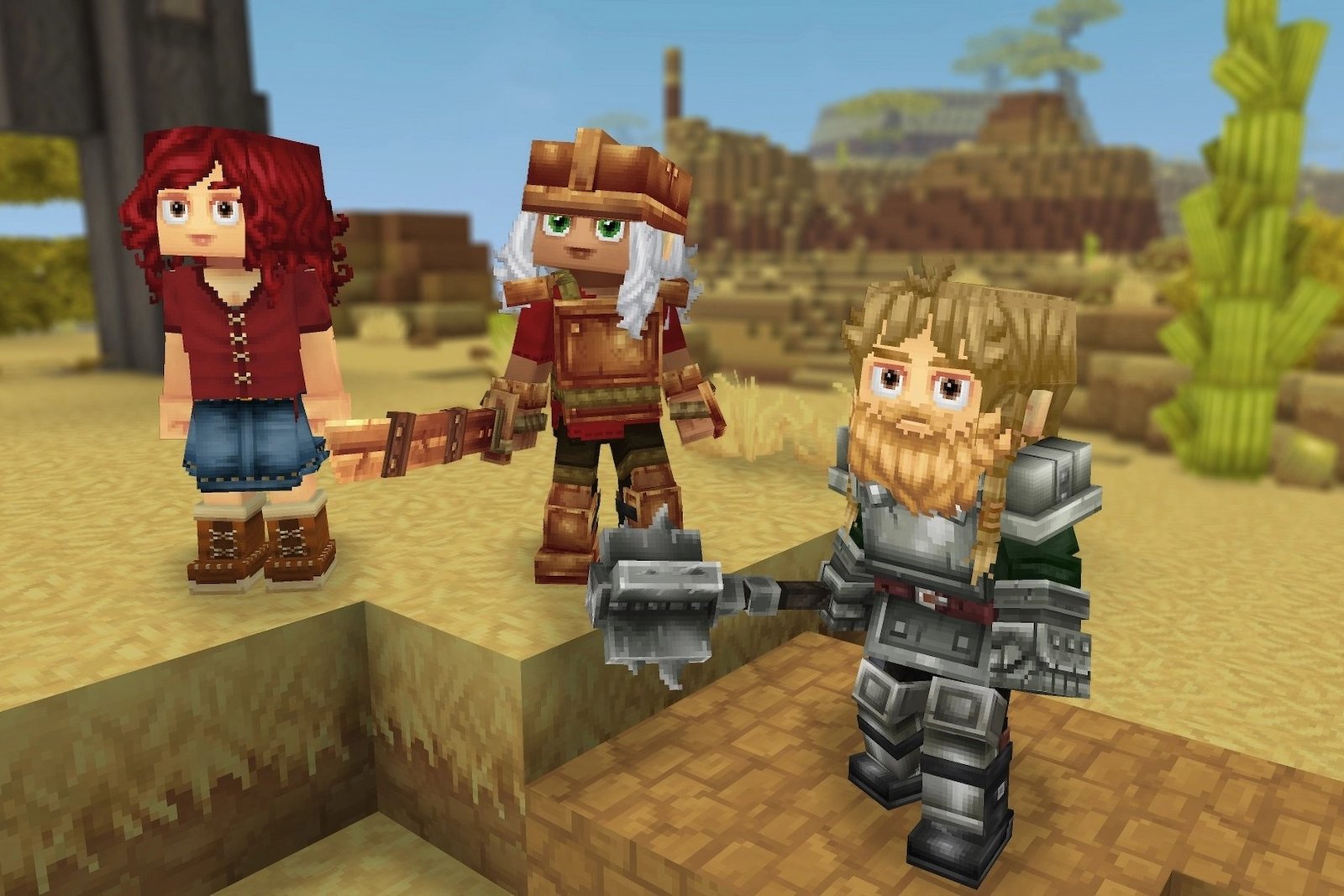
Hytale is a lot of fun when in singleplayer, but it’s even more enjoyable with a friend or two. The best way to do this is for someone to run and host their own server so players can join the same world.
Although similar to Minecraft, Hytale currently offers limited ways to run a server, and it requires a bit of coding. No matter, though, if you’re itching to make a server for your friends on Hytale, here’s a step-by-step guide on how to do so.
Table of Contents
How to set up a Hytale server
Before you get ahead of yourself, you should know some of the basic requirements your PC needs to run a Hytale server. You can run the server on a device with at least 4GB of memory, either through Windows or Linux, as Hytale supports both x64 and arm64 architectures.
Install Java 25
You will also need the Java 25 program. Hypixel Studios recommends installing Java 25 using Adoptium, but it’s up to you how you install it.
Confirm you’ve installed Java by running the following:
java --versionYou should expect this output:
openjdk 25.0.1 2025-10-21 LTS
OpenJDK Runtime Environment Temurin-25.0.1+8 (build 25.0.1+8-LTS)
OpenJDK 64-Bit Server VM Temurin-25.0.1+8 (build 25.0.1+8-LTS, mixed mode, sharing)
Obtain server files
You will start off by obtaining server files in either of these two ways:
- Manually copy server files from the Launcher installation
- Use Hytale Downloader CLI
Manual copy
This method is great for quick testing, but it’s annoying to keep updating. Start by finding the files in your launcher installation folder. The location depends on your OS:
- Windows: %appdata%\Hytale\install\release\package\game\latest
- Linux: $XDG_DATA_HOME/Hytale/install/release/package/game/latest
- MacOS: ~/Application Support/Hytale/install/release/package/game/latest
Inside this folder, you should see a Client and Server folder, as well as Assets.zip. Copy the Server folder and Assets.zip to your destination server folder.
Hytale Downloader CLI
This method is easier to keep updated and is better for production servers. It will download Hytale server and asset files using OAth2 authentication.
Download it here for Windows and Linux. See QUICKSTART.md inside the archive. Here are some of the commands:
| Command | Description |
| ./hytale-downloader | Download the latest release. |
| ./hytale-downloader -print-version | Download ta o specific file. |
| ./hytale-downloader -version | Download the latest release |
| ./hytale-downloader -check-update | Check for hytale-downloader updates. |
| ./hytale-downloader -download-path game.zip | Download to a specific file. |
| ./hytale-downloader -patchline pre-release | Download a specific file. |
| ./hytale-downloader -skip-update-check | Skip the automatic update check. |
Run the Hytale server
First, start up the server with this:
java -XX:AOTCache=HytaleServer.aot -jar HytaleServer.jar --assets Assets.zipYou’ll need to authenticate your server after your initial launch.
/auth login deviceIt will then give you instructions for authorization, involving a URL to visit alongside a special code to use. Once complete, players will be able to start connecting to your server.
Port forward
By default, the port will be 5520. You can change it by using the –bind argument with whatever new port number you want:
java -jar HytaleServer.jar --assets Assets.zip --bind 1234Hytale also uses QUIC over UDP, and not TCP. If you’re hosting behind a router, you can forward UDP port 5520 (or whatever your port is) to your server machine. Note that TCP forwarding isn’t required.
Firewall rules
Windows Defender Firewall:
New-NetFirewallRule -DisplayName "Hytale Server" -Direction Inbound -Protocol UDP -LocalPort 5520 -Action AllowLinux (iptables):
sudo iptables -A INPUT -p udp --dport 5520 -j ACCEPTLinux (ufw):
sudo ufw allow 5520/udpQUIC should typically handle NAT traversal well. If some players have issues connecting, try these steps:
- Make sure the port forward is for UDP, not TCP.
- Consider a VPS or dedicated server, as symmetric NAT configurations may cause problems.
Server files
Here are some files for your Hytale server that’ll show up after running it, and what they do:
- .cache/ – Cache for optimized files
- logs/ – Server log files
- mods/ – Installed mods
- universe/ – World/player save data
- bans.json – Banned players
- config.json – Server configuration
- permissions.json – Permission configuration
- whitelist.json – Whitelisted players
Another important directory is universe/worlds/, which contains all your server’s playable worlds. Each world has its own config.json file.